
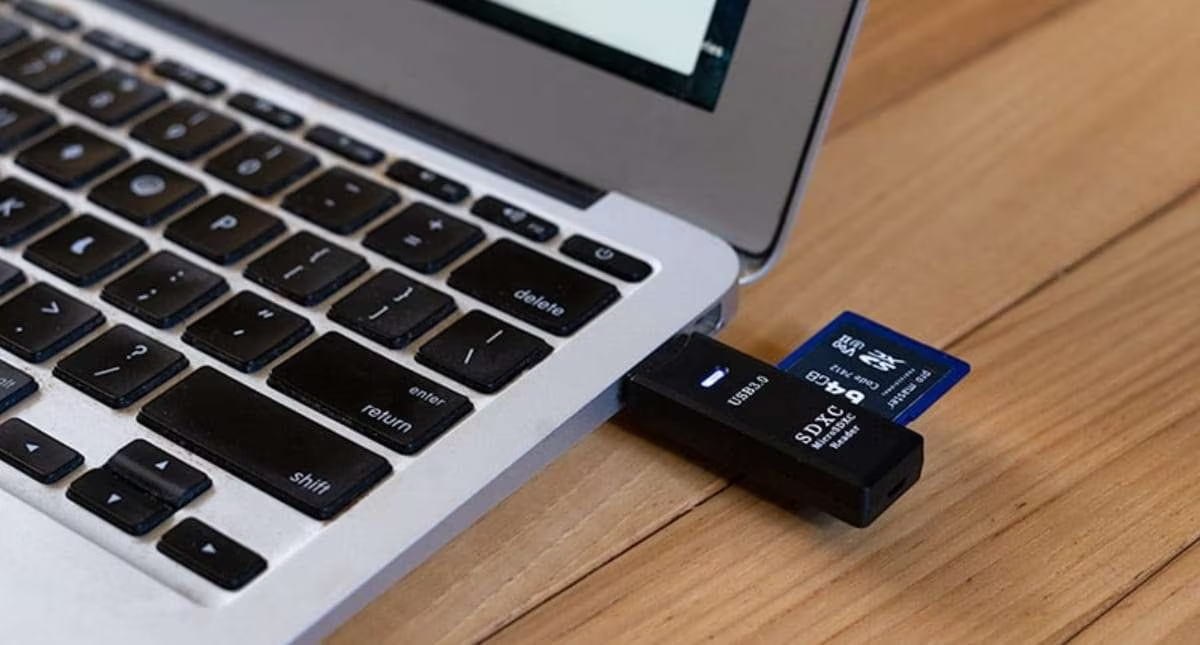
SD cards are widely used in smartphones, digital cameras, drones, tablets, and other electronic devices to store photos, videos, documents, and important files. However, an SD card can sometimes become corrupted, making stored data inaccessible. You might see an error message asking you to format the card, discover that your files have disappeared, or find that your computer cannot read the storage device.
The good news is that you may be able to recover files from a corrupted SD card without formatting it. The right approach depends on the type of corruption, the condition of the card, and whether the stored data has been overwritten. Understanding your options before taking action can help protect your valuable files.
For more practical technology guides and troubleshooting advice, ScoopByte can be a useful starting point for exploring everyday digital problems and their possible solutions.
Why Does an SD Card Become Corrupted?
Before attempting SD card data recovery, it helps to understand what might have caused the problem. Different causes may require different recovery methods.
1. Removing the SD Card Improperly
Removing a memory card while a camera, phone, or computer is transferring files can interrupt writing operations. This may damage the file system and prevent the device from reading stored information correctly.
2. Sudden Power Loss
If a camera or smartphone shuts down while saving a large video or photograph, the file may become incomplete. In some cases, the interruption can also affect the card’s file system.
3. File System Errors
An SD card may become unreadable because of damaged file system information. Your computer might recognize the card but display a message saying that the drive needs to be formatted.
4. Malware or Accidental Deletion
Malware, accidental deletion, and incorrect file operations can make files disappear or become inaccessible. Sometimes, the files remain recoverable even when they are no longer visible through File Explorer.
5. Physical Damage or Wear
Memory cards have a limited lifespan. Excessive use, moisture, heat, physical damage, or failing memory chips can cause read errors and unexpected disconnections.
If your SD card repeatedly disconnects, becomes unusually hot, or is not detected consistently, avoid repeatedly testing it. A physically damaged card may require professional recovery services.
What to Do Before Recovering Files
The steps you take immediately after discovering corruption can significantly affect your chances of successful recovery.
Stop Using the SD Card
Do not take additional photographs, record videos, download files, or save anything to the affected card. New data can overwrite deleted files, making them more difficult or impossible to recover.
Do Not Format the Card
Even when your computer recommends formatting, avoid accepting the prompt if you need the existing files. Formatting can alter file system information and may complicate the recovery process.
Check the Card Reader and Connection
Sometimes, the issue is not corruption but a faulty card reader, USB port, or adapter.
Try the following:
- Disconnect the card safely and reconnect it.
- Use another compatible card reader.
- Connect it to a different USB port.
- Test it on another computer if available.
- Check whether the card’s physical lock switch is enabled.
These simple checks may help identify a connection problem without changing the data stored on the card.
Method 1: Recover Files Using a Different Device
Start with the simplest troubleshooting method. Insert the SD card into another compatible computer or device and check whether the files are accessible.
If you can open the card, copy important files to your computer immediately. Save them to a different drive rather than back onto the affected SD card.
If the files are visible but some cannot be opened, try copying smaller groups of files. A particular damaged file may interrupt a large transfer.
If the card remains unreadable on multiple devices, proceed to the next method.
Method 2: Use Windows File Explorer to Check for Hidden Files
Sometimes, files appear to be missing because they have been hidden rather than permanently deleted.
On Windows, follow these steps:
- Insert the SD card into your computer.
- Open File Explorer.
- Select the SD card from the navigation panel.
- Open the View menu.
- Enable the option to display hidden items, where available.
- Check whether your missing folders or files become visible.
The precise menu names may vary depending on your Windows version.
If the files reappear, copy them to a safe location. However, if you see unfamiliar shortcuts or suspicious files, avoid opening them until you have checked the card for malware.
This method will not repair a damaged file system, but it can help when files are simply hidden.
Method 3: Use Data Recovery Software
Data recovery software can scan an SD card for recoverable files, including certain deleted photographs, videos, and documents. Some tools can also identify files when the file system is damaged.
Choose a reputable recovery application that supports your card’s file system and the types of files you need.
Steps to Recover Files
- Connect the SD card to your computer using a reliable card reader.
- Install the recovery software on your computer’s internal drive, not on the affected card.
- Open the application and select the SD card.
- Choose a scan suitable for deleted or inaccessible files.
- Wait for the scan to finish without disconnecting the card.
- Preview the recoverable files if the software supports previews.
- Select the files you want to restore.
- Save recovered files to your computer or another healthy storage device.
Never save recovered files to the same SD card. Doing so could overwrite other data that has not yet been recovered.
Which Recovery Tool Should You Choose?
The right tool depends on your operating system, the card’s condition, and your budget. Some programs offer free recovery within certain limits, while others require payment for particular features.
Read the software’s documentation before starting. Confirm that it supports your device and avoid applications that promise guaranteed recovery regardless of the damage.
If the SD card contains irreplaceable files, consider creating a sector-by-sector image of the card first, provided the card can be read safely. Recovery attempts on the image can reduce the need to repeatedly access the original device.
Method 4: Try Windows Error Checking Carefully
Windows includes tools that can identify certain file system errors. However, repair utilities may modify the card’s file system, so they are not always the safest first choice when recovering important data.
If the files are valuable, recover or image the data before attempting repairs whenever possible.
For a card that contains no critical data or after you have secured a backup, you can consider Windows error checking:
- Open File Explorer.
- Right-click the SD card.
- Select Properties.
- Open the Tools tab.
- Find the Error checking section.
- Follow the available instructions.
The exact options depend on your Windows version.
Remember that error checking is primarily intended to identify or repair storage errors, not to recover every deleted file. It may not resolve corruption caused by physical damage or failing memory chips.
Method 5: Use CHKDSK Only When Appropriate
CHKDSK is a Windows command-line utility that checks supported file systems for logical errors. It can sometimes make an accessible drive usable again, but it should be approached carefully when data recovery is the priority.
For example, running a repair command with the /f option can change file system information. That may be useful for repairing certain errors, but it can also make some damaged or missing files harder to recover.
Before considering CHKDSK:
- Confirm that Windows detects the correct SD card.
- Make sure you know its drive letter.
- Back up accessible files or create a disk image if possible.
- Avoid repair commands if the card shows signs of physical failure.
Do not run random commands copied from the internet without understanding their effects. If the card contains essential business documents, family photographs, or other irreplaceable data, professional recovery may be the safer option.
Method 6: Recover Photos and Videos From a Corrupted Card
Photographs and videos are among the most common files people need to recover from damaged SD cards.
If standard recovery software cannot identify the original file system, some specialized tools can search for recognizable file signatures. This process is sometimes called file carving.
File carving can recover certain JPEG photographs, common video formats, and other supported file types. However, the recovered files may have generic names, missing folder information, or incomplete contents.
Fragmented videos can be especially difficult to restore because a single video may be stored across multiple sections of the card.
After recovery, check that important photographs open correctly and that videos play from beginning to end. Do not assume a file is fully recovered simply because its name appears in the results.
For reliable guidance on protecting digital information and understanding storage risks, the National Institute of Standards and Technology provides broader information about data security and information technology practices.
When Should You Contact a Professional Data Recovery Service?
Software recovery is not suitable for every situation. Consider professional assistance if:
- The SD card is physically cracked or bent.
- Your computer cannot detect the card at all.
- The card repeatedly disconnects during scanning.
- The device becomes unusually hot.
- Recovery software causes repeated read errors.
- The data is highly valuable and cannot be replaced.
A professional service may have specialized equipment for handling damaged storage devices. Before choosing one, ask about its diagnostic process, estimated cost, confidentiality practices, and whether you pay if recovery is unsuccessful.
Avoid opening the memory card yourself or attempting electrical repairs. SD cards contain delicate components that can be damaged further by improper handling.
How to Prevent SD Card Corruption in the Future
Once you have recovered your files, take steps to reduce the risk of another incident.
Safely Eject the Card
Use the device’s safe removal procedure before disconnecting the card from a computer. On cameras and phones, wait until saving operations have finished.
Back Up Important Files
Keep at least one additional copy of important photographs, videos, and documents on another storage device or a trusted cloud service. A backup is much more dependable than relying on a single memory card.
Use a Compatible, Reliable Card
Choose a memory card that meets your device’s capacity and speed requirements. Purchase from reputable sellers to reduce the risk of counterfeit products.
Avoid Interrupting Transfers
Do not switch off your camera, remove the card, or disconnect the reader while files are being transferred.
Replace Cards That Show Repeated Errors
Frequent corruption, slow performance, and repeated read errors may indicate that a card is reaching the end of its useful life. Replace unreliable cards instead of continuing to trust them with important data.
Conclusion
Recovering files from a corrupted SD card without formatting is possible in many situations, but success depends on the cause and severity of the problem. Start by stopping all use of the card, checking the connection, and looking for hidden files. If those steps do not work, consider suitable recovery software and save recovered files to a separate storage device.
Avoid rushing into formatting, file system repairs, or unfamiliar command-line tools when the stored data is important. If the card appears physically damaged or repeatedly disconnects, seek professional advice before making further attempts.
Most importantly, create regular backups once your files are safe. A second copy of your important data can save you time, money, and stress if an SD card becomes corrupted again.